

Close Menu
FlickonclickFlickonclick
    Facebook X (Twitter) Instagram Pinterest
    FlickonclickFlickonclick
    Facebook X (Twitter) Instagram
    Contact Us
    • Home
    • Entertainment
      • OTT
        • Amazon Prime Video
        • Amazon miniTV
        • Amazon MX Player
        • JioHotstar
        • Netflix
        • ShemarooMe
        • SonyLiv
        • ULLU App
        • Zee5
      • Reviews
        • Movie Reviews
        • Web Series Review
      • Cast Salary & Budget
      • Music
      • Box Office Collection
      • Celebrity
        • Biography Corner
        • Photos
        • Wealth
    • Lifestyle
      • Dating & Relationships
      • Fashion
      • Product Reviews
      • Travel
      • Food
      • Fitness
    • Technology
      • Smartphones
    • Finance
      • Cryptocurrency
      • Startups
    • Sports
    • Latest News
      • India
      • Global
      • Trending
    • More
      • About Us
      • Advertise with Us
      • Contact Us
      • Privacy Policy
      • Disclaimer
      • Cookie Policy
    FlickonclickFlickonclick
    Home » Technology » How to Fix Low Signal Problems on Your Phone: 5 Easy Methods That Work in 99% of Cases
    Technology

    How to Fix Low Signal Problems on Your Phone: 5 Easy Methods That Work in 99% of Cases

    Dropping calls, slow internet, or no signal at all? Here are five simple fixes that solve the problem in most cases — no technical knowledge needed
    By Mohan NasreJune 24, 2026
    Facebook Twitter WhatsApp Email
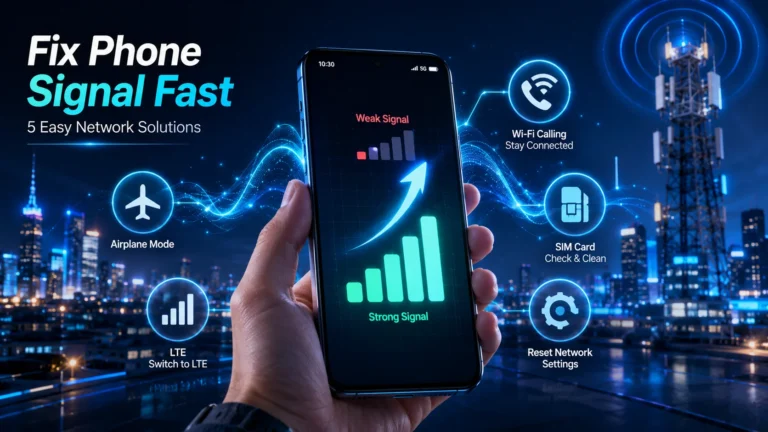
    How to Fix Low Signal Problems on Your Phone - 5 Easy Methods That Work in 99% of Cases

    Few things are more frustrating than picking up your phone to make a call or check something online, only to see those dreaded signal bars sitting at zero.

    It happens to almost everyone at some point — and the good news is that most signal problems can be fixed in a few minutes without visiting a store or calling customer support.

    Struggling with low or no signal on your phone? Here are 5 simple and effective methods to fix signal problems on both Android and iPhone — quick, easy, and no expertise needed.


    5 Ways to Improve Low Signal Problems on Android and iPhone


    Method 1: Toggle Airplane Mode On and Off

    This is the simplest fix, and it works surprisingly often.

    Open your phone’s settings or pull down the quick settings panel and switch Airplane Mode on. Wait about ten seconds, then switch it off again.

    What this does is completely disconnect your phone from all networks for a moment and then force it to reconnect from scratch — essentially finding the nearest available cell tower with a fresh connection.

    It takes less than thirty seconds and solves the problem more often than you’d expect. Always try this first before anything else.


    Method 2: Switch Your Network Mode from 5G to LTE

    A lot of people have their phones set to 5G automatically, which is great when the network is available. But in areas where 5G coverage is weak or non-existent, your phone can end up with no signal at all rather than dropping down to a more stable connection.

    Switching to LTE manually solves this instantly.

    On iPhone: Go to Settings → Mobile Service → select your SIM → Voice & Data → choose LTE instead of 5G.

    On Android: Go to Settings → Network and Internet → SIMs → select your active SIM → Preferred Network Type → select LTE.

    You might get slightly slower speeds, but you’ll have a stable, reliable connection — which is far more useful than fast speeds that keep dropping out.


    Method 3: Turn On Wi-Fi Calling

    This one is particularly useful if your signal is fine outdoors but disappears the moment you walk inside your home or office.

    Wi-Fi calling lets your phone route calls and messages through a Wi-Fi connection instead of the mobile network. So even when your signal is weak, you can still make and receive calls as long as you’re connected to Wi-Fi.

    On iPhone: Go to Settings → Mobile Service → SIMs → select your active SIM → tap Wi-Fi Calling → toggle it on.

    On Android: Go to Settings → Network and Internet → SIMs → select your active SIM → tap Wi-Fi Calling and turn it on.

    Once it’s enabled, your phone will automatically use Wi-Fi when your mobile signal is low, keeping you connected without any extra effort on your part.

    Also Read: Best Free AI Tools for PowerPoint Presentations


    Method 4: Reset Your Network Settings

    If you’ve tried the first three methods and still have problems, it’s worth resetting your network settings entirely.

    Many people avoid this because they think it will wipe their phone — but it won’t. A network reset only clears saved Wi-Fi passwords, Bluetooth pairings, and network configurations. Your photos, apps, and personal data stay completely untouched.

    On iPhone: Go to Settings → General → Transfer or Reset iPhone → Reset → Reset Network Settings, then follow the steps on screen.

    On Android: Go to Settings → General Management → Reset → Reset Network Settings.

    After the reset, reconnect to your Wi-Fi and check your signal. This often clears glitches caused by incorrect network settings or minor software bugs that have built up over time.


    Method 5: Remove, Clean, and Reinsert Your SIM Card

    If nothing else has worked, the problem might be physical rather than software-related.

    Switch off your phone, remove the SIM card, and gently wipe both the card and the SIM tray with a dry cloth. Dust or grime on the SIM’s contacts can interrupt the connection between the card and your phone, causing signal issues that look like network problems but aren’t.

    Reinsert the SIM carefully and switch your phone back on.

    If this doesn’t help either, consider getting a replacement SIM from your network provider. SIM cards are small but they’re electronic components, and they do wear out or develop faults over time — especially older ones. A new SIM card from the same provider takes only a few minutes to set up and often completely solves persistent signal problems.


    Work through these five methods in order and you’ll resolve the problem in most situations. Start with the quick fixes — Airplane Mode and network mode — and only move to the more involved steps if those don’t work. The fix is usually simpler than it seems.

    Android iPhone
    Previous Article7 Best Free AI Tools for PowerPoint Presentations in 2026: Check Full List
    Next Article 8 TV Actors Who Were Way Better Than Big Bollywood Stars
    Mohan Nasre

      With over 2000 articles and blogs to his name for Flickonclick, Mohan Nasre is a versatile content writer skilled in multiple niches, including entertainment, technology, finance, news, lifestyle, fitness, and more. His dynamic writing style and ability to adapt to diverse topics have made him a go-to writer for high-quality, engaging content that resonates with readers across various industries.

      Related Posts

      Technology June 27, 2026Updated:June 28, 20266 Mins Read

      6 Powerful Android Apps That Will Completely Transform Your Smartphone Experience

      Technology June 20, 2026Updated:June 20, 20265 Mins Read

      Wear OS 7 Is Here: 7 Key Features Coming to Your Android Smartwatch

      Technology June 18, 2026Updated:June 23, 20266 Mins Read

      How to Make an Android Battery Last Longer in 2026: Follow These 7 Easy Tricks

      Global April 14, 20266 Mins Read

      Microsoft Shuts Down Outlook Lite: What It Means for Android Users Worldwide

      Technology March 3, 2026Updated:April 8, 20264 Mins Read

      iPhone 17e – Apple’s New Budget Flagship with A19 Chip and MagSafe

      India November 7, 2025Updated:February 16, 20262 Mins Read

      Government Agency Warning! Major Threat for Android 13, 14, 15, and 16 Users

      Technology September 10, 2025Updated:April 8, 20264 Mins Read

      iPhone 17 vs iPhone 14 & 15: Is It Worth the Upgrade or Just Hype?

      Trending September 9, 20253 Mins Read

      iPhone 17 Sales Prediction: How Many Units Will Apple Sell in the First Week?

      Latest Articles

      Parimala and Co ZEE5 Review: Should You Watch This Tamil Crime Comedy?

      July 11, 2026

      Lenin Movie Review: Akhil Akkineni Delivers Career-Best Performance in an Ambitious But Uneven Village Drama

      July 11, 2026

      Evil Dead Burn Review: More Blood Than Thrills in This Relentless but Hollow Horror Sequel

      July 11, 2026

      Balti Review: Shane Nigam’s Raw and Gritty Malayalam Crime Drama Is Worth Your Time on SonyLIV

      July 11, 2026

      Idhayam Murali Review: A Sweet Love Letter to the 90s That Stays One Step Behind Short of Being Great

      July 11, 2026

      Top 30 Hottest Indian Models in 2026

      July 11, 2026

      Ikka Movie Review: 7 Reasons This Sunny Deol Courtroom Drama Falls Flat

      July 10, 2026

      8 Best Kids’ Birthday Cake Ideas: From Cartoon Themes to Custom Creations

      July 10, 2026

      Dhamaal 5 Release Date: Is Another Sequel Really Coming? Here’s What We Know

      July 10, 2026

      Dhamaal 4 Review: This Treasure Hunt Is Loud, Silly, And Exactly What Fans Wanted

      July 10, 2026
      About Flickonclick

      Flickonclick brings you the latest updates across entertainment, lifestyle, tech, and more. Stay informed with trending news and stories that matter.

      Facebook X (Twitter) Instagram
      Latest Articles
      • Parimala and Co ZEE5 Review: Should You Watch This Tamil Crime Comedy?
      • Lenin Movie Review: Akhil Akkineni Delivers Career-Best Performance in an Ambitious But Uneven Village Drama
      • Evil Dead Burn Review: More Blood Than Thrills in This Relentless but Hollow Horror Sequel
      • Balti Review: Shane Nigam’s Raw and Gritty Malayalam Crime Drama Is Worth Your Time on SonyLIV
      Important Links
      • About Us
      • Advertise with Us
      • Contact Us
      • Cookie Policy
      • Disclaimer
      • Home
      • Privacy Policy
      • Terms & Conditions
      © 2026 Flickonclick. All Rights Reserved

      Type above and press Enter to search. Press Esc to cancel.