


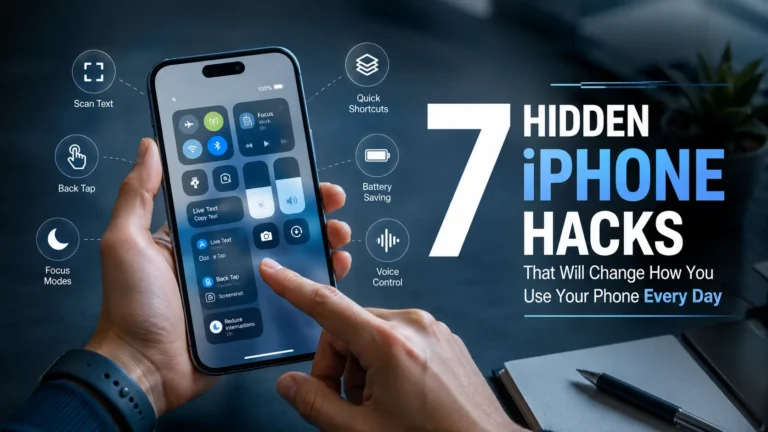
Apple has a habit of building really useful features into the iPhone without ever really telling anyone about them. You could own the same device for two years and still be doing things the long way without realising there’s a much easier option sitting right there in your settings.
These aren’t complicated hacks that require downloads or technical knowledge. They’re built-in features that work right now, on the phone already in your pocket. Here are seven of the best ones.
7 Hidden iPhone Hacks You Need to Know Right Now
1. Turn Your Space Bar Into a Trackpad
Placing the cursor exactly where you want it in a piece of text is one of the most quietly frustrating things about typing on a phone. Tapping precisely between letters almost never works on the first try.
Here’s the fix — press and hold the space bar on your keyboard. The whole keyboard turns into a blank grey trackpad. Slide your finger around and the cursor moves smoothly and precisely wherever you need it. No more repeated tapping until you accidentally select the wrong word.
Once you know this one exists, you’ll use it constantly.
2. Silence Keyboard Clicks Without Muting Your Whole Phone
The clicking sound your keyboard makes with every tap is fine for some people and absolutely maddening for others. The obvious solution is to mute the phone, but then you miss actual notifications and calls.
There’s a better way. Go to Settings → Sounds & Haptics → Keyboard Feedback and toggle off Sound while leaving Haptic switched on. You’ll still feel the gentle vibration of each keypress but without any noise at all.
Perfect for meetings, late nights, or just anyone who finds the clicking unnecessarily loud.
3. Make the Apple Logo a Shortcut Button
This one genuinely surprises people the first time they hear about it.
The Apple logo on the back of your iPhone isn’t just decoration — it can function as a secret button. The feature is called Back Tap, and it’s buried in Accessibility settings.
Go to Settings → Accessibility → Touch → Back Tap. Choose Double Tap or Triple Tap, then assign any action you like — screenshot, camera, Control Centre, torchlight, or dozens of other options.
Once you set it up, tapping the back of your phone twice opens whatever you need instantly. It feels like a superpower you’ve been missing for years.
4. Control Your Flashlight Brightness
Most people treat the iPhone flashlight as a simple on-off switch. It’s actually a dimmer.
Open your Control Centre and long-press the flashlight icon. A vertical slider appears that lets you adjust the brightness from a very faint glow all the way up to full beam.
The faint setting is genuinely useful — reading something in a dark room, checking a bag without waking someone up, or finding something under furniture without blinding yourself in the process.
5. Remove the Red Badge Notifications
Those small red circles sitting on your app icons — telling you how many emails, messages, or notifications you haven’t looked at — add up quickly and create a low-level visual stress that most people don’t even consciously register but definitely feel.
You can turn them off individually for any app. Go to Settings → Notifications, tap on any app, and toggle off Badges. Do this for every app that doesn’t genuinely need to demand your attention, and your home screen becomes considerably calmer.
It doesn’t stop the notifications from arriving — you’ll still see them when you open the app or check the notification centre — it just removes the constant visual reminder sitting on your screen all day.
6. Schedule Your iPhone to Switch On Do Not Disturb Automatically
Most people turn Do Not Disturb on manually when they want quiet time, and then forget to turn it off.
iPhone has a Focus mode that lets you schedule this automatically. Go to Settings → Focus, choose Do Not Disturb or create a custom Focus, and set a schedule. It activates and deactivates on its own — every night at a specific time, during work hours, whenever you choose.
You can also customise which contacts and apps are allowed to break through the silence, so you never miss something genuinely important while still getting the quiet you need.
7. Use Your iPhone as a Magnifying Glass
This one is so simple it feels almost too obvious, and yet most people have never used it.
Your iPhone has a built-in Magnifier app designed to work exactly like a physical magnifying glass using your camera. Go to Settings → Accessibility → Magnifier and toggle it on.
Once enabled, you can access it through Control Centre or your accessibility shortcut. It zooms in on small print, fine text, tiny labels — anything your eyes struggle to read clearly. You can also freeze the frame, adjust brightness, and apply filters if needed.
For anyone who has ever squinted at the back of a medicine packet or a restaurant menu in dim lighting, this is genuinely useful.
Similar Read: Everything the iPhone 16 gets right in 2026
The Takeaway
Apple builds a remarkable amount of thoughtful functionality into every iPhone, and a lot of it sits quietly in the settings waiting to be discovered.
None of these tricks require any downloads, any payment, or any technical knowledge. They’re all already there — you just needed to know where to look.
Go through these one by one and set them up. Your daily iPhone experience is about to get noticeably smoother.