

Close Menu
FlickonclickFlickonclick
    Facebook X (Twitter) Instagram Pinterest
    FlickonclickFlickonclick
    Facebook X (Twitter) Instagram
    Contact Us
    • Home
    • Entertainment
      • OTT
        • Amazon Prime Video
        • Amazon miniTV
        • Amazon MX Player
        • JioHotstar
        • Netflix
        • ShemarooMe
        • SonyLiv
        • ULLU App
        • Zee5
      • Reviews
        • Movie Reviews
        • Web Series Review
      • Cast Salary & Budget
      • Music
      • Box Office Collection
      • Celebrity
        • Biography Corner
        • Photos
        • Wealth
    • Lifestyle
      • Dating & Relationships
      • Fashion
      • Product Reviews
      • Travel
      • Food
      • Fitness
    • Technology
      • Smartphones
    • Finance
      • Cryptocurrency
      • Startups
    • Sports
    • Latest News
      • India
      • Global
      • Trending
    • More
      • About Us
      • Advertise with Us
      • Contact Us
      • Privacy Policy
      • Disclaimer
      • Cookie Policy
    FlickonclickFlickonclick
    Home » Technology » Smartphones » 7 Hidden iPhone Hacks That Will Change How You Use Your Phone Every Day
    Smartphones

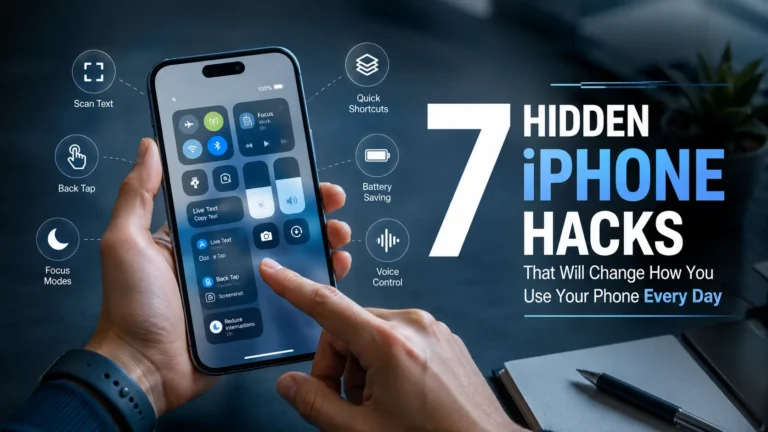
    7 Hidden iPhone Hacks That Will Change How You Use Your Phone Every Day

    Apple quietly builds some genuinely clever features into every iPhone — here are seven most people have no idea exist
    By Mohan NasreAugust 4, 2026Updated:August 4, 20265 Mins Read
    Facebook Twitter WhatsApp Email
    7 Hidden iPhone Hacks That Will Change How You Use Your Phone Every Day

    Apple has a habit of building really useful features into the iPhone without ever really telling anyone about them. You could own the same device for two years and still be doing things the long way without realising there’s a much easier option sitting right there in your settings.

    These aren’t complicated hacks that require downloads or technical knowledge. They’re built-in features that work right now, on the phone already in your pocket. Here are seven of the best ones.

    7 Hidden iPhone Hacks You Need to Know Right Now

    1. Turn Your Space Bar Into a Trackpad

    Placing the cursor exactly where you want it in a piece of text is one of the most quietly frustrating things about typing on a phone. Tapping precisely between letters almost never works on the first try.

    Here’s the fix — press and hold the space bar on your keyboard. The whole keyboard turns into a blank grey trackpad. Slide your finger around and the cursor moves smoothly and precisely wherever you need it. No more repeated tapping until you accidentally select the wrong word.

    Once you know this one exists, you’ll use it constantly.


    2. Silence Keyboard Clicks Without Muting Your Whole Phone

    The clicking sound your keyboard makes with every tap is fine for some people and absolutely maddening for others. The obvious solution is to mute the phone, but then you miss actual notifications and calls.

    There’s a better way. Go to Settings → Sounds & Haptics → Keyboard Feedback and toggle off Sound while leaving Haptic switched on. You’ll still feel the gentle vibration of each keypress but without any noise at all.

    Perfect for meetings, late nights, or just anyone who finds the clicking unnecessarily loud.


    3. Make the Apple Logo a Shortcut Button

    This one genuinely surprises people the first time they hear about it.

    The Apple logo on the back of your iPhone isn’t just decoration — it can function as a secret button. The feature is called Back Tap, and it’s buried in Accessibility settings.

    Go to Settings → Accessibility → Touch → Back Tap. Choose Double Tap or Triple Tap, then assign any action you like — screenshot, camera, Control Centre, torchlight, or dozens of other options.

    Once you set it up, tapping the back of your phone twice opens whatever you need instantly. It feels like a superpower you’ve been missing for years.


    4. Control Your Flashlight Brightness

    Most people treat the iPhone flashlight as a simple on-off switch. It’s actually a dimmer.

    Open your Control Centre and long-press the flashlight icon. A vertical slider appears that lets you adjust the brightness from a very faint glow all the way up to full beam.

    The faint setting is genuinely useful — reading something in a dark room, checking a bag without waking someone up, or finding something under furniture without blinding yourself in the process.


    5. Remove the Red Badge Notifications

    Those small red circles sitting on your app icons — telling you how many emails, messages, or notifications you haven’t looked at — add up quickly and create a low-level visual stress that most people don’t even consciously register but definitely feel.

    You can turn them off individually for any app. Go to Settings → Notifications, tap on any app, and toggle off Badges. Do this for every app that doesn’t genuinely need to demand your attention, and your home screen becomes considerably calmer.

    It doesn’t stop the notifications from arriving — you’ll still see them when you open the app or check the notification centre — it just removes the constant visual reminder sitting on your screen all day.


    6. Schedule Your iPhone to Switch On Do Not Disturb Automatically

    Most people turn Do Not Disturb on manually when they want quiet time, and then forget to turn it off.

    iPhone has a Focus mode that lets you schedule this automatically. Go to Settings → Focus, choose Do Not Disturb or create a custom Focus, and set a schedule. It activates and deactivates on its own — every night at a specific time, during work hours, whenever you choose.

    You can also customise which contacts and apps are allowed to break through the silence, so you never miss something genuinely important while still getting the quiet you need.


    7. Use Your iPhone as a Magnifying Glass

    This one is so simple it feels almost too obvious, and yet most people have never used it.

    Your iPhone has a built-in Magnifier app designed to work exactly like a physical magnifying glass using your camera. Go to Settings → Accessibility → Magnifier and toggle it on.

    Once enabled, you can access it through Control Centre or your accessibility shortcut. It zooms in on small print, fine text, tiny labels — anything your eyes struggle to read clearly. You can also freeze the frame, adjust brightness, and apply filters if needed.

    For anyone who has ever squinted at the back of a medicine packet or a restaurant menu in dim lighting, this is genuinely useful.

    Similar Read: Everything the iPhone 16 gets right in 2026

    The Takeaway

    Apple builds a remarkable amount of thoughtful functionality into every iPhone, and a lot of it sits quietly in the settings waiting to be discovered.

    None of these tricks require any downloads, any payment, or any technical knowledge. They’re all already there — you just needed to know where to look.

    Go through these one by one and set them up. Your daily iPhone experience is about to get noticeably smoother.

    Hacks iPhone
    Previous ArticleWhatsApp Down: Users Report Widespread Outage, Photos and Videos Failing to Send
    Next Article Kia Sorento Hybrid SUV Pre-Bookings Open in India: Everything You Need to Know
    Mohan Nasre

      With over 2000 articles and blogs to his name for Flickonclick, Mohan Nasre is a versatile content writer skilled in multiple niches, including entertainment, technology, finance, news, lifestyle, fitness, and more. His dynamic writing style and ability to adapt to diverse topics have made him a go-to writer for high-quality, engaging content that resonates with readers across various industries.

      Related Posts

      Technology June 24, 20265 Mins Read

      How to Fix Low Signal Problems on Your Phone: 5 Easy Methods That Work in 99% of Cases

      Technology March 3, 2026Updated:April 8, 20264 Mins Read

      iPhone 17e – Apple’s New Budget Flagship with A19 Chip and MagSafe

      Technology September 10, 2025Updated:April 8, 20264 Mins Read

      iPhone 17 vs iPhone 14 & 15: Is It Worth the Upgrade or Just Hype?

      Trending September 9, 20253 Mins Read

      iPhone 17 Sales Prediction: How Many Units Will Apple Sell in the First Week?

      Offers July 17, 20252 Mins Read

      Buy iPhone 16 Under 20000- Huge Discounts in Flipkart’s Sale

      Smartphones May 11, 2025Updated:April 8, 20262 Mins Read

      OnePlus 13 to Feature iPhone 16 Technology, Company Confirms Ahead of Launch

      Technology March 6, 2025Updated:April 8, 20262 Mins Read

      Latest Update on iPhone 17: Game-Changing Battery & Camera Upgrades Coming Soon!

      Technology February 21, 2025Updated:April 8, 20262 Mins Read

      Apple iPhone 16e Launched: India Prices, Pre-Order & Sale Dates

      Latest Articles

      Our Sticky Love K-Drama Release Date on Netflix: Everything You Need to Know

      August 4, 2026

      The Super Mario Galaxy Movie OTT Release Date: Where and When to Watch It in India

      August 4, 2026

      Kia Sorento Hybrid SUV Pre-Bookings Open in India: Everything You Need to Know

      August 4, 2026

      7 Hidden iPhone Hacks That Will Change How You Use Your Phone Every Day

      August 4, 2026

      WhatsApp Down: Users Report Widespread Outage, Photos and Videos Failing to Send

      August 4, 2026

      Ohh My Dog Release Date Confirmed: Everything You Need to Know

      August 3, 2026

      Aryabhatta Ka Zero Trailer Review and Release Date — Himansh Kohli’s Inspiring Journey of Dreams, Love and Second Chances

      August 3, 2026

      Operation Safed Sagar Release Date on Netflix: Cast, Crew, Trailer and All You Need to Know

      August 3, 2026

      RJ Mahvash Boyfriend & Dating History: What’s the Truth About Her and Yuzvendra Chahal?

      August 2, 2026

      Unmadham Movie Review: Kunchacko Boban Anchors a Chilling Psychological Mystery

      July 31, 2026
      About Flickonclick

      Flickonclick brings you the latest updates across entertainment, lifestyle, tech, and more. Stay informed with trending news and stories that matter.

      Facebook X (Twitter) Instagram
      Latest Articles
      • Our Sticky Love K-Drama Release Date on Netflix: Everything You Need to Know
      • The Super Mario Galaxy Movie OTT Release Date: Where and When to Watch It in India
      • Kia Sorento Hybrid SUV Pre-Bookings Open in India: Everything You Need to Know
      • 7 Hidden iPhone Hacks That Will Change How You Use Your Phone Every Day
      Important Links
      • About Us
      • Advertise with Us
      • Contact Us
      • Cookie Policy
      • Disclaimer
      • Home
      • Privacy Policy
      • Terms & Conditions
      © 2026 Flickonclick. All Rights Reserved

      Type above and press Enter to search. Press Esc to cancel.