


Few things are more frustrating than picking up your phone to make a call or check something online, only to see those dreaded signal bars sitting at zero.
It happens to almost everyone at some point — and the good news is that most signal problems can be fixed in a few minutes without visiting a store or calling customer support.
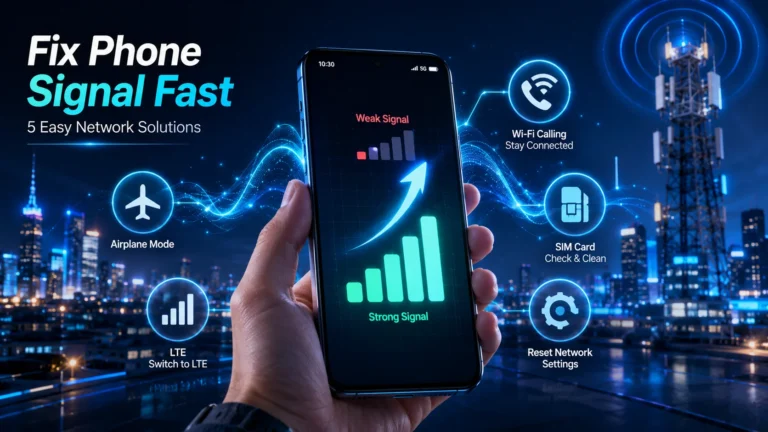
Struggling with low or no signal on your phone? Here are 5 simple and effective methods to fix signal problems on both Android and iPhone — quick, easy, and no expertise needed.
5 Ways to Improve Low Signal Problems on Android and iPhone
Method 1: Toggle Airplane Mode On and Off
This is the simplest fix, and it works surprisingly often.
Open your phone’s settings or pull down the quick settings panel and switch Airplane Mode on. Wait about ten seconds, then switch it off again.
What this does is completely disconnect your phone from all networks for a moment and then force it to reconnect from scratch — essentially finding the nearest available cell tower with a fresh connection.
It takes less than thirty seconds and solves the problem more often than you’d expect. Always try this first before anything else.
Method 2: Switch Your Network Mode from 5G to LTE
A lot of people have their phones set to 5G automatically, which is great when the network is available. But in areas where 5G coverage is weak or non-existent, your phone can end up with no signal at all rather than dropping down to a more stable connection.
Switching to LTE manually solves this instantly.
On iPhone: Go to Settings → Mobile Service → select your SIM → Voice & Data → choose LTE instead of 5G.
On Android: Go to Settings → Network and Internet → SIMs → select your active SIM → Preferred Network Type → select LTE.
You might get slightly slower speeds, but you’ll have a stable, reliable connection — which is far more useful than fast speeds that keep dropping out.
Method 3: Turn On Wi-Fi Calling
This one is particularly useful if your signal is fine outdoors but disappears the moment you walk inside your home or office.
Wi-Fi calling lets your phone route calls and messages through a Wi-Fi connection instead of the mobile network. So even when your signal is weak, you can still make and receive calls as long as you’re connected to Wi-Fi.
On iPhone: Go to Settings → Mobile Service → SIMs → select your active SIM → tap Wi-Fi Calling → toggle it on.
On Android: Go to Settings → Network and Internet → SIMs → select your active SIM → tap Wi-Fi Calling and turn it on.
Once it’s enabled, your phone will automatically use Wi-Fi when your mobile signal is low, keeping you connected without any extra effort on your part.
Also Read: Best Free AI Tools for PowerPoint Presentations
Method 4: Reset Your Network Settings
If you’ve tried the first three methods and still have problems, it’s worth resetting your network settings entirely.
Many people avoid this because they think it will wipe their phone — but it won’t. A network reset only clears saved Wi-Fi passwords, Bluetooth pairings, and network configurations. Your photos, apps, and personal data stay completely untouched.
On iPhone: Go to Settings → General → Transfer or Reset iPhone → Reset → Reset Network Settings, then follow the steps on screen.
On Android: Go to Settings → General Management → Reset → Reset Network Settings.
After the reset, reconnect to your Wi-Fi and check your signal. This often clears glitches caused by incorrect network settings or minor software bugs that have built up over time.
Method 5: Remove, Clean, and Reinsert Your SIM Card
If nothing else has worked, the problem might be physical rather than software-related.
Switch off your phone, remove the SIM card, and gently wipe both the card and the SIM tray with a dry cloth. Dust or grime on the SIM’s contacts can interrupt the connection between the card and your phone, causing signal issues that look like network problems but aren’t.
Reinsert the SIM carefully and switch your phone back on.
If this doesn’t help either, consider getting a replacement SIM from your network provider. SIM cards are small but they’re electronic components, and they do wear out or develop faults over time — especially older ones. A new SIM card from the same provider takes only a few minutes to set up and often completely solves persistent signal problems.
Work through these five methods in order and you’ll resolve the problem in most situations. Start with the quick fixes — Airplane Mode and network mode — and only move to the more involved steps if those don’t work. The fix is usually simpler than it seems.