


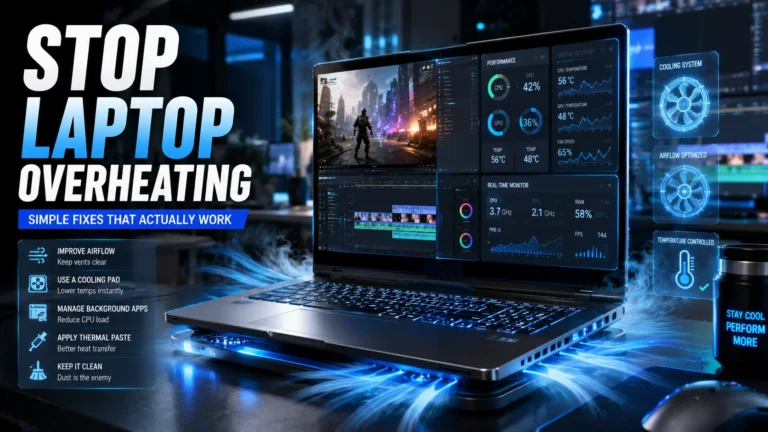
If you’ve ever noticed your laptop’s keyboard getting uncomfortably warm, the fans suddenly sounding like a small aircraft taking off, or everything just feeling slower than it should, you’ve experienced the early signs of overheating. It’s one of those problems that seems minor at first but can quietly chip away at performance, battery life, and eventually the hardware itself.
The good part is that most of the time, fixing it doesn’t require new cooling pads, repairs, or any technical expertise. A handful of small habit changes can make a genuinely noticeable difference.
Laptop Overheating? 5 Easy Ways to Keep Your Laptop Cool
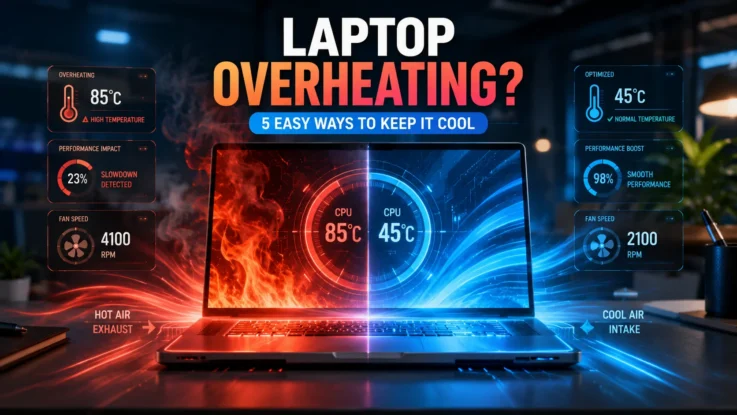
1. Let Your Laptop Breathe
This one sounds obvious, but it’s probably the single most common cause of overheating. Beds, sofas, blankets, your actual lap — all of these feel comfortable but completely block the vents your laptop relies on to push hot air out.
A hard, flat surface like a desk or table lets air circulate underneath properly. If you can, also avoid working in direct sunlight or in a room that’s already warm — the ambient temperature around your laptop matters more than people realize, especially during long sessions of gaming or heavy work.
2. Clean Dust Before It Becomes a Problem
Dust builds up inside vents and fans gradually, and most people don’t think about it until their laptop is already running hot and loud. Every few months, a quick cleaning with compressed air on the vents (with the laptop powered off, obviously) can clear out a surprising amount of buildup and restore proper airflow.
If your laptop is a few years old and still running hot even after cleaning, it might be worth getting it professionally serviced. Old thermal paste loses effectiveness over time, and replacing it can make a real difference to how well the cooling system actually works.
3. Use Smarter Power Settings
A lot of laptops default to running at maximum performance even when you’re just browsing or typing up a document — which generates heat for no real benefit. Switching to Balanced or Power Saver mode stops the processor from constantly pushing itself and helps your battery last longer at the same time.
If you want to go a step further, Windows lets you cap the CPU’s maximum performance at 99 percent in the power settings. That small tweak prevents aggressive turbo boosting, which tends to produce a lot of extra heat for very little actual performance gain. Dimming your screen slightly also helps — displays use more power than most people expect, and lower brightness means less heat overall.
4. Reduce Background Workloads
Your laptop is probably doing more than you think at any given moment. Background apps, automatic updates, cloud sync tools, and a browser with thirty tabs open all add up. Opening Task Manager occasionally to see what’s actually using your CPU and memory can be eye-opening — and closing the things you don’t need running can lower temperatures almost immediately.
If you’re gaming, lowering texture quality, reducing visual effects, or capping the frame rate can cut heat output significantly without making the game feel noticeably worse. And giving your laptop short breaks between heavy tasks — even just a few minutes idle — gives internal temperatures a chance to come back down.
5. Keep Software Updated and Monitor Temperatures
Updates aren’t just about new features or security. Manufacturers regularly release updates specifically aimed at improving power efficiency, thermal management, and fan behavior. Keeping Windows, graphics drivers, and BIOS firmware up to date is an easy win that often gets overlooked.
If you want to keep an eye on things directly, tools like HWMonitor or Core Temp give you a clear picture of what’s happening inside your machine. If temperatures are consistently sitting above 90°C during normal use, that’s usually a sign something needs attention beyond just these quick fixes.
For more experienced users, undervolting is worth looking into. Slightly reducing the voltage your processor runs at can lower heat output while keeping performance largely intact — done correctly, it’s generally safe and can genuinely improve both efficiency and stability.
Also Read: 7 Hidden USB-C Features on Your Laptop You Probably Never Knew
Small Changes That Make a Big Difference
Overheating isn’t just something you have to live with as part of owning a laptop. Better airflow, occasional cleaning, smarter power settings, fewer background processes, and staying current with updates can change how a laptop feels day to day — often within minutes of making the change.
A cooler laptop runs faster, stays quieter, and lasts longer. Whether you’re on video calls all day, editing video, studying, or gaming late into the night, these small habits add up to a noticeably better experience.