


iPhone 17 battery drain has become one of the most common complaints since iOS 27 rolled out in September 2026. Phones that comfortably lasted a full day are suddenly running low by evening. The good news is that in most cases the battery itself is fine. The drain usually comes from the update settling in, a new Wi-Fi setting called Connectivity Assist, and a few apps working too hard in the background.
This guide explains why your iPhone 17 battery is draining fast and walks through 12 fixes, in the order that makes the most sense to try them.
Quick Fix: Top 5 Things to Do First
- Check Settings > Battery to find the app or activity using the most power
- Turn off Connectivity Assist in Settings > Wi-Fi
- Give iOS 27 three to five days to finish indexing
- Update all apps from the App Store
- Change location access from Always to While Using the App
Is iPhone 17 Battery Drain a Real Problem?
Yes, many users are seeing it. But it is mostly a software and settings problem, not a faulty battery. Here is what is happening:
- iOS 27 is still settling in. After every big update, the iPhone re-indexes photos, messages and files in the background. iOS 27 also adds extra Siri and Search optimisation, so this period can run a little longer than usual. Most phones calm down in three to five days, while phones with very large photo libraries can take close to a week.
- A new Wi-Fi setting is using extra power. iOS 27 introduced Connectivity Assist, which is switched on for most people by default. More on this below, because it is the fix most guides miss.
- Apps are the usual suspects. Instagram, Facebook, WhatsApp, games and any app with “Always” location access can drain the battery in the background.
The pattern is not new. iPhone 15 and iPhone 16 owners reported similar drain after the iOS 26 update last year, and some iPhone 18 Pro owners are reporting it after iOS 27 now. It is an “after every update” problem, and it can be fixed.
How to Find What Is Draining Your iPhone 17 Battery
Before changing random settings, spend two minutes finding the real cause.
- Open Settings > Battery.
- Look above the Daily Usage chart. If you see an Insight that says Ongoing iOS Update, the phone is still finishing the update in the background. That alone explains the drain.
- Check the Daily Usage chart to see whether today’s usage is higher than your last seven days.
- Tap View All Battery Usage to see which apps and system activities used the most power.
- Tap any app near the top. If it shows Background Activity, it is draining power even when you are not using it. If you see Low Signal or No Mobile Coverage, your network is the problem, not the phone.
Note down the top two or three names. Most of the fixes below target exactly those.
12 Fixes for iPhone 17 Battery Draining Fast
1. Give iOS 27 a Few Days to Settle
If you updated in the last week, the phone is still busy indexing. Keep it on Wi-Fi and plugged in overnight for two or three nights. That is when it does most of the heavy work.
2. Turn Off Connectivity Assist
This is the fix that makes the biggest difference for many users. Connectivity Assist keeps your mobile data running alongside Wi-Fi so it can step in when Wi-Fi gets slow. Two radios working together means more battery use, and it can also eat into your mobile data.
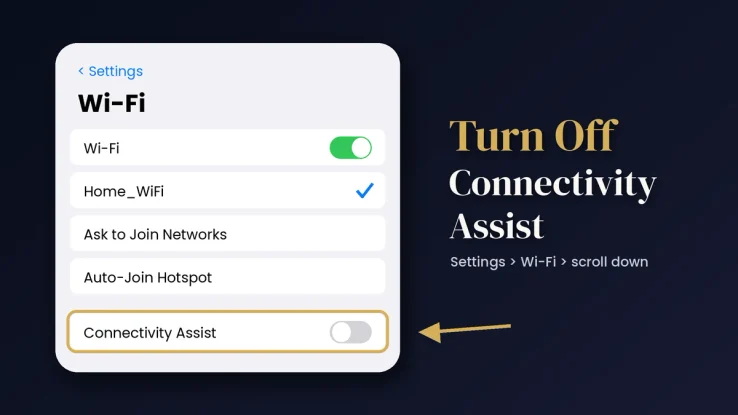
- Open Settings > Wi-Fi.
- Scroll to the very bottom.
- Switch off Connectivity Assist.
To turn it off only for your home Wi-Fi, tap the (i) next to your network and switch off Use Connectivity Assist. Some users had to turn it off in both places before the drain eased, so check both.
3. Update Every App
Older app versions that are not built for iOS 27 often misbehave in the background. Open the App Store, tap your profile picture at the top right and tap Update All.
4. Limit Background App Refresh
Go to Settings > General > Background App Refresh. Set it to Wi-Fi instead of Wi-Fi & Mobile Data, then switch it off for apps that do not need it, such as shopping apps, food delivery apps and most games.
5. Fix Location Access
Apps set to use your location “Always” keep the GPS busy all day.
- Go to Settings > Privacy & Security > Location Services.
- Tap each app and change Always to While Using the App, or Never if it does not need location at all.
Maps, cab apps and weather apps can stay. A photo editor or a game has no reason to know where you are.
6. Switch Off Always-On Display
The iPhone 17 has an Always-On Display, which looks great but never lets the screen fully rest. Go to Settings > Display & Brightness > Always On Display and turn it off. If you like the feature, at least turn off the wallpaper option so the screen stays darker.
7. Use 5G Auto and Watch Your Signal
Weak signal is a silent battery killer because the phone keeps working harder to stay connected.
- Go to Settings > Mobile Service > Mobile Data Options > Voice & Data.
- Choose 5G Auto. Your iPhone will switch to 4G when 5G does not offer any real benefit.
In places with no network, such as a flight or a basement office, turn on Airplane Mode and connect to Wi-Fi.
8. Cut Down Notifications That Wake the Screen
Every notification lights up the screen, and fifty a day from group chats adds up. Go to Settings > Notifications, open the noisiest apps and move them to Scheduled Summary or turn them off.
9. Turn On Adaptive Power and Use Low Power Mode
The iPhone 17 supports Adaptive Power, which learns your usage and makes small adjustments on heavy days. It can also switch on Low Power Mode automatically at 20%. Find it in Settings > Battery > Power Mode.
On a long day, turn on Low Power Mode from the same screen or from Control Centre. It pauses Mail fetch, Background App Refresh and some visual effects, and switches off once you charge past 80%. If you are often away from a charger, a good power bank also helps. Here are the things to look for when buying a power bank.
10. Force Restart Your iPhone 17
A force restart clears stuck background processes that a normal restart sometimes misses. It does not delete anything.
- Press and release Volume Up.
- Press and release Volume Down.
- Press and hold the Side button until the Apple logo appears, then let go.
11. Check Battery Health
Go to Settings > Battery > Battery Health. On an iPhone 17, maximum capacity should still be high. If it is below 80% or you see a Service message, the battery itself needs attention and no setting will fix that.
12. Reset All Settings
If nothing else works, a settings reset often clears a bad configuration left behind by the update. It does not delete photos, apps or messages, but you will need to enter your Wi-Fi passwords again. Go to Settings > General > Transfer or Reset iPhone > Reset > Reset All Settings.
iPhone 17 Not Turning On After the Battery Hits 0%?
Some iPhone 17, iPhone 17 Pro and iPhone Air owners have reported that after the battery fully drains, the phone stays black when plugged in, with no charging icon. The phone is not dead. Users and Apple Store staff have found that placing it on a MagSafe or other wireless charger for 10 to 15 minutes brings it back, after which wired charging works normally. A higher-wattage USB-C charger has also helped some users.
Is the iPhone 18 Pro Any Better on Battery?
A little. The iPhone 18 Pro, launched in September 2026 with Apple’s A20 Pro chip, lasted 16 hours 17 minutes in Tom’s Guide’s battery test, compared with 15 hours 21 minutes for the iPhone 17 Pro. That is about an hour more, not a huge jump.
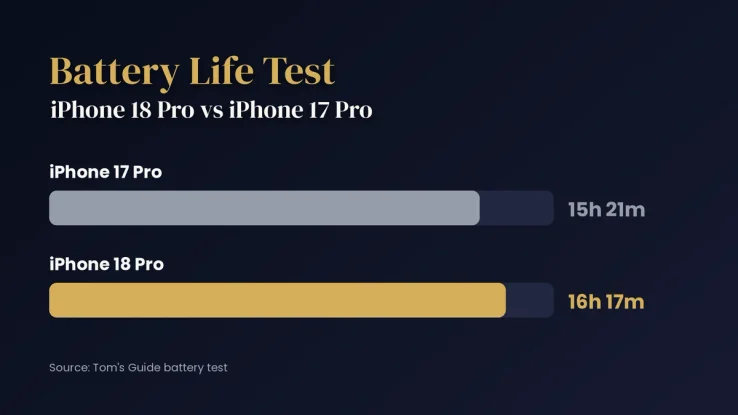
Some iPhone 18 Pro owners are also reporting drain after iOS 27, so a new phone will not magically solve the problem. The fixes above work on the iPhone 18 Pro too. The standard iPhone 18 is not out yet and is expected in early 2027.
Must Read: Apple Pay India Launch
When Should You Visit Apple?
Visit an Apple Store or an Apple Authorised Service Provider if:
- More than two weeks have passed since the update and the fixes above have not helped
- Battery Health shows a Service message
- The phone gets hot while sitting idle, not just while gaming or charging
- The battery percentage jumps suddenly, for example from 40% to 10% in a few seconds
The iPhone 17 launched in September 2025, so check your Apple warranty coverage or AppleCare+ status before you go. Ask for a battery diagnostic test. It is free and takes only a few minutes.
iPhone 17 Battery Drain: FAQs
Why is my iPhone 17 battery draining so fast after the iOS 27 update?
The phone re-indexes photos, files and Siri data in the background after the update. This usually settles within three to five days. If it does not, check Settings > Battery for the app causing it and turn off Connectivity Assist in Wi-Fi settings.
Is iPhone 17 battery drain a hardware problem?
In most cases, no. It is usually caused by the software update, background apps, location access or weak signal. If Battery Health is above 80% with no Service message, the battery is fine.
Does the iPhone 18 Pro also have battery drain issues?
Some iPhone 18 Pro owners have reported drain after iOS 27, which points to the update rather than the phone.
Does Low Power Mode harm the iPhone 17 battery?
No. Low Power Mode only pauses some background tasks and visual effects. It is safe to use every day.
Will Reset All Settings delete my data?
No. It only restores system settings such as Wi-Fi, privacy and display to their defaults. Photos, apps and messages stay as they are.
Final Thoughts
Most iPhone 17 battery drain problems have the same cause: the phone is doing too much in the background, not failing. Start with Battery Usage, give iOS 27 a few days, turn off Connectivity Assist, and clean up location access and background refresh. For most users, that is enough to get a full day of battery life back.