


YouTube is where most kids spend their screen time today. It has great cartoons, science videos and music, but it also has adult content, violent clips, disturbing videos dressed up as cartoons, and a growing number of scams aimed at children. The good news is that parents can block most of this with the right settings and a few simple habits.
This guide explains the real risks, the best YouTube option for each age, step-by-step parental control settings, extra device-level protection, and how to teach kids to spot fraud videos on their own.
What Kind of Harmful Content Kids Can Find on YouTube
Before changing any settings, it helps to know what you are protecting your child from. Harmful videos on YouTube usually fall into four groups.
1. Adult and Sexual Content
YouTube does not allow pornography, but suggestive thumbnails, sexual jokes, “prank” videos and clips that push viewers toward adult websites still slip through. Links in video descriptions and comments are a common route to explicit sites.
2. Violent, Scary and Disturbing Videos
Some of the most worrying videos look child-friendly at first. They use popular cartoon characters, bright colours and nursery rhymes, but then show violence, injury, horror or inappropriate behaviour. Because the thumbnails look innocent, young kids click on them without any suspicion.
3. Scam and Fraud Videos
Children are easy targets for scammers. The most common tricks include:
- “Free Robux”, “free V-Bucks” or “free skins” generators that ask kids to log in, download an app or complete “human verification”
- Fake giveaways in comments, where an account pretending to be a famous creator says “You won! Message me on WhatsApp or Telegram to claim your prize”
- Livestreams using deepfake videos of celebrities promising to double any money or crypto sent to them
- Videos pushing “earn money from your phone” apps that collect personal data or payment details
4. Harmful Challenges and Bad Influences
Dangerous challenges, extreme pranks, unhealthy body image content and videos that use abusive language can affect children even when nothing explicit is shown.
Choose the Right YouTube Option for Your Child’s Age
The biggest step parents can take is to stop letting young children use a regular YouTube account. YouTube offers three family options, and each one suits a different age.
| Child’s age | Best option | What it does |
|---|---|---|
| Under 9 | YouTube Kids app | A separate app with only kid-friendly videos and the strongest controls |
| 9 to 12 | Supervised YouTube account (Explore level) | Regular YouTube with a filtered library, managed by a parent |
| 13 to 17 | Teen supervision | Linked teen account with Shorts limits, reminders and activity insights |
Every child is different, so treat these ages as a guide. A sensitive 10-year-old may still be better off in YouTube Kids, while a mature 12-year-old may be ready for a wider level.
How to Set Up YouTube Kids (Best for Children Under 9)
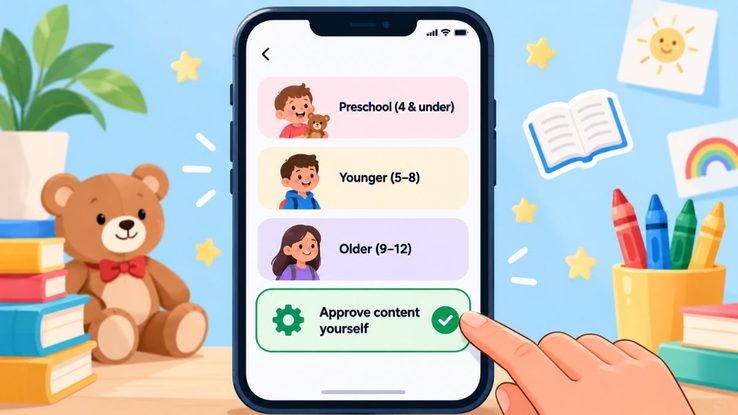
YouTube Kids is a separate app built for young children. It has a smaller library of videos and gives parents the most control.
- Download the YouTube Kids app on your child’s phone, tablet or smart TV, or open youtubekids.com on a computer.
- Sign in with your own Google account as the parent.
- Create a profile for your child and enter their age.
- Pick a content level: Preschool (4 and under), Younger (5 to 8), Older (9 to 12), or Approve content yourself.
- Turn search off so your child only sees recommended, filtered videos.
- Set a custom passcode so your child cannot change settings.
Use “Approve Content Yourself” for the Safest Experience
This is the strongest setting YouTube offers. Your child can only watch videos, channels and collections that you have picked. Search is switched off automatically. It takes a little time to build the list, but it removes almost all risk of a bad video showing up.
Other Useful YouTube Kids Settings
- Timer: set a daily viewing limit, and the app locks itself when time is up.
- Block: tap the three dots on any video and choose Block to hide that video or the whole channel.
- Autoplay off: stops the app from jumping to the next video automatically.
- Pause watch history: stops past viewing from shaping future recommendations.
- Check history: look at what your child has watched every few days.
One honest warning: no filter is perfect. Disturbing videos have slipped into YouTube Kids in the past, which is why approved content mode and regular history checks matter.
How to Set Up a Supervised YouTube Account (Ages 9 to 12)
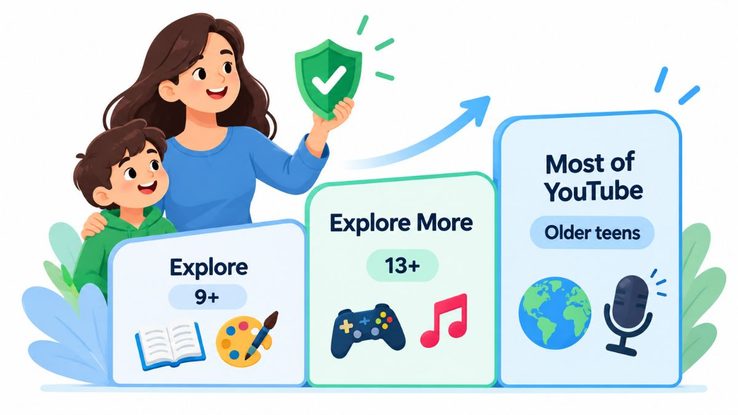
By around 9 or 10, many kids feel YouTube Kids is “for babies” and start using regular YouTube on a browser or a friend’s phone. A supervised account is a safer middle step. It looks like normal YouTube but with filters, and parents stay in charge.
- Install the Google Family Link app on your phone.
- Create a Google account for your child through Family Link, or link their existing account.
- Open the YouTube app or go to youtube.com/myfamily and choose to set up a supervised experience.
- Select a content setting for your child.
- Sign your child into YouTube with their supervised account on every device they use.
Supervised Account Content Levels
| Level | Suitable for | What kids can watch |
|---|---|---|
| Explore | Generally ages 9 and up | Vlogs, tutorials, gaming, music, news and educational videos |
| Explore More | Generally ages 13 and up | A wider range of videos, including live streams |
| Most of YouTube | Older teens | Almost everything except age-restricted videos |
Supervised accounts also switch off several risky features. Kids cannot upload videos, post comments, use live chat or make purchases. This blocks one of the most common ways strangers and scammers contact children.
Parents can also block channels, see watch history, and set a daily limit for YouTube Shorts. Since early 2026, that Shorts limit can be set all the way down to zero, which is useful because short videos are harder to filter and very easy to binge.
Teen Supervision (Ages 13 to 17)
Teenagers need more freedom, but they still benefit from guardrails. With teen supervision, a parent links their account to the teen’s account through Family Link.
- Set a daily Shorts time limit, including zero.
- Take-a-break and bedtime reminders are switched on by default for users aged 13 to 17.
- Parents can see insights such as channel activity and uploads.
- YouTube limits repeated recommendations of content that may be harmful for teens when viewed again and again, such as videos about body image or fighting.
In some countries, including the United States, YouTube also uses AI to estimate whether a signed-in user is under 18. If it thinks the user is a teen, teen protections are turned on automatically. Parents should still set up supervision rather than depend on this.
Turn On Restricted Mode as an Extra Layer
Restricted Mode hides videos that may contain mature content and hides comments. It works on any YouTube account and on shared devices like family computers.
- Open YouTube and tap your profile picture.
- Go to Settings, then General.
- Turn on Restricted Mode.
On a desktop browser, you can lock Restricted Mode with your account so it cannot be switched off easily. On phones and tablets it cannot be locked, and a child can turn it off, sign out or open a private browser tab. That is why Restricted Mode should be used only as a backup, not as the main protection.
Add Protection at the Device and Wi-Fi Level
Settings inside YouTube only work when your child is signed into the right account. Device and network controls close the gaps.
Android Phones and Tablets
- Use Google Family Link to approve or block apps, so your child cannot install the regular YouTube app or other browsers without permission.
- Turn on SafeSearch in Google and set Chrome to block explicit sites.
- Set daily screen time limits and a device bedtime.
iPhone and iPad
- Go to Settings, then Screen Time, then Content and Privacy Restrictions.
- Limit adult websites under Web Content.
- Block app installs or require your approval with Ask to Buy through Family Sharing.
- Use App Limits to cap time on YouTube.
Smart TVs
Many children watch YouTube on the living room TV, which is often signed into a parent’s account. Install the YouTube Kids app on the TV, or sign your child in with their supervised account. Avoid leaving your own account open on a shared screen, since your recommendations may include content not meant for kids.
Home Wi-Fi and Router
- Use a family-safe DNS service such as Cloudflare for Families (1.1.1.3) or CleanBrowsing’s family filter to block adult websites across every device on your Wi-Fi.
- Many routers have built-in parental controls that let you set internet schedules and block categories of sites.
- Network administrators can also force Restricted Mode on all YouTube traffic using Google’s restrict.youtube.com setting. Some family DNS services do this automatically.
How to Spot Fraud and Scam Videos on YouTube
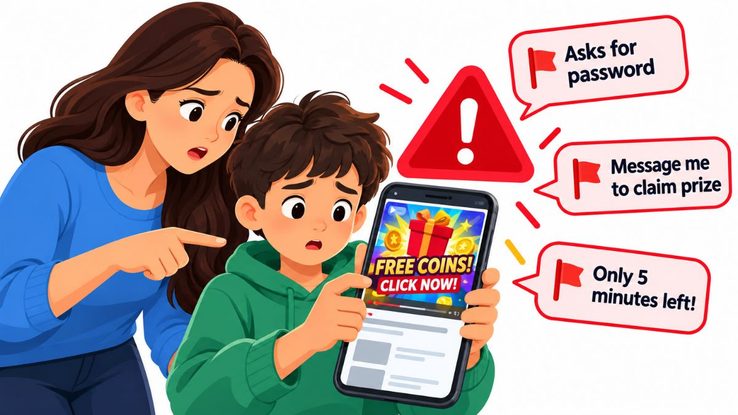
Parental controls block a lot of harmful content, but scams are designed to look harmless. Teach your child these simple warning signs.
| Warning sign | What it usually means |
|---|---|
| “Free Robux”, “free V-Bucks”, “free diamonds” or “unlimited coins” | Almost always a scam to steal game accounts or personal data |
| A comment saying “You won! Contact me on WhatsApp or Telegram” | A fake account pretending to be the creator |
| Asking you to log in, download an app or “verify you are human” to get a reward | Phishing or malware |
| A celebrity promising to double money or crypto during a livestream | A deepfake or stolen video used for fraud |
| Pressure like “only 5 minutes left” or “first 100 people only” | A trick to stop you from thinking clearly |
| Asking for a parent’s card details, OTP or password | Fraud, every single time |
Make one rule very clear: real creators and real game companies never ask for passwords, card details or verification codes. If anything on YouTube asks for these, close it and tell a parent.
Simple Family Habits That Work Better Than Any Filter
Settings can fail, and kids can find ways around them. These habits fill the gaps.
- Keep screens in shared spaces. Young children should watch YouTube in the living room, not alone in a bedroom with headphones on.
- Watch together sometimes. Sitting with your child for even 10 minutes shows you what they like and what the algorithm is pushing.
- Check watch history every week. It takes two minutes and tells you more than any app report.
- Agree on screen time rules. Set clear limits for weekdays and weekends, and no screens during meals or an hour before bed.
- Talk, do not just block. Explain why some videos are not okay, so your child understands the reason and does not simply look for a way around the rule.
- Make it safe to tell you. Tell your child they will not be punished for reporting a scary or strange video. Kids who fear losing their device often hide what they have seen.
- Subscribe to good channels together. A feed full of trusted educational and entertainment channels leaves less room for random recommendations.
How to Report and Block Harmful Videos
Reporting helps YouTube remove harmful content for every child, not just yours.
- Tap the three dots next to the video or below the player.
- Choose Report.
- Pick the reason, such as sexual content, violent or repulsive content, child abuse, or spam and scams.
- Submit the report. In YouTube Kids, you can also block the video or channel at the same time.
If a scam has already caused money loss or a stranger has contacted your child, save screenshots, change any shared passwords, contact your bank if card details were shared, and report it to your local cyber crime authority.
Quick Checklist for Parents
- Under 9: YouTube Kids with “Approve content yourself” or search turned off
- Ages 9 to 12: Supervised account on Explore level
- Ages 13 to 17: Teen supervision with a Shorts limit
- Restricted Mode turned on and locked on shared computers
- App installs controlled through Family Link or Screen Time
- Family-safe DNS on your home Wi-Fi
- Kid account or YouTube Kids on the smart TV
- Weekly watch history check
- A clear talk about scams and “free” rewards
Related Article: Why Walkie Talkie Devices Are Useful for Family Safety and Coordination
Frequently Asked Questions
Is YouTube Kids completely safe?
No app is completely safe, but YouTube Kids is much safer than regular YouTube. Using the “Approve content yourself” setting gives the strongest protection because your child can only watch videos you have chosen.
Can I block YouTube Shorts for my child?
Yes. On supervised and teen-supervised accounts, parents can set the daily Shorts time limit to zero through Google Family Link, which effectively blocks Shorts.
Can my child turn off Restricted Mode?
On phones and tablets, yes. Restricted Mode can only be locked on desktop browsers. For stronger control, use a supervised account along with Family Link or Screen Time.
At what age should my child move from YouTube Kids to regular YouTube?
Most children are ready for a supervised YouTube account around 9 to 12 years old. Unsupervised YouTube is best left until at least 13, the minimum age YouTube sets for having your own account in most countries.
How can I see what my child watches on YouTube?
Check the watch history in the YouTube Kids app or in your child’s supervised account. With Family Link, parents can also review activity and screen time from their own phone.
Disclaimer
This article is for general information only. The steps and settings described here are based on YouTube, YouTube Kids, Google Family Link and device features available at the time of writing. These platforms update their features, menus and age rules often, and some options may look different or may not be available in every country or on every device.
No parental control tool or filter can block all harmful content. These steps can lower the risk, but they cannot guarantee that a child will never see inappropriate, disturbing or fraudulent material. Parental supervision and open conversations with children remain important.
Flickonclick is not affiliated with, endorsed by or sponsored by YouTube, Google, Apple, Cloudflare, CleanBrowsing or any other company mentioned in this article. All product names and trademarks belong to their respective owners. Any mention of a product or service is not a paid recommendation.
If your child has been targeted by a scam, lost money, or been contacted by a stranger online, please contact your bank, the platform concerned and your local cyber crime or law enforcement authority right away.