


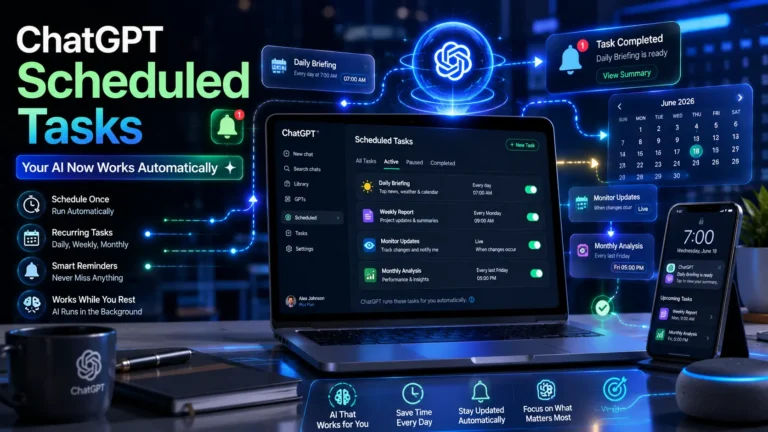
ChatGPT has always been good at answering questions and helping with tasks in the moment. But starting June 18, 2026, it can now do things without you being in the room. OpenAI has officially launched Scheduled Tasks for Go, Plus, Pro, Business, and Enterprise subscribers on both web and mobile — a feature that shifts ChatGPT from something you use reactively to something that actually works for you in the background.
As OpenAI put it in their announcement: users can now schedule one-off and recurring tasks, and ask ChatGPT to check for changes and send notifications when something meaningful happens.
What Scheduled Tasks Do
The core idea is straightforward. You tell ChatGPT what you want it to do and when, and it handles the rest without you needing to come back and prompt it again. Practically speaking, that means you can set it to run a daily report every morning, send you a weekly summary of industry news, remind you about important dates, or monitor connected apps for meaningful changes and alert you only when something worth knowing actually happens.
Tasks can be triggered at a specific time or date, run on a recurring schedule, or configured to monitor conditions and notify you when they’re met. The feature is capped at running once per hour, and tasks that sit unused for a while may automatically pause to prevent system overload.
Key Improvements Over Previous Versions
This replaces and significantly expands on ChatGPT’s earlier Tasks feature. The changes are worth knowing:
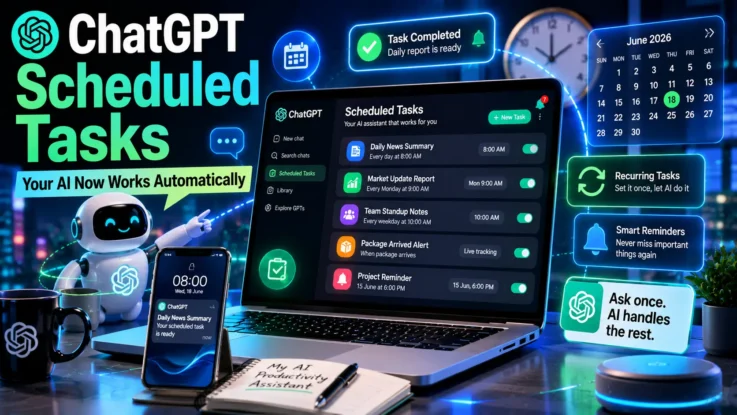
A new Scheduled page in the sidebar gives you one dedicated place to see all active tasks, check when they’ll run next, and manage them — pausing, resuming, editing, or deleting as needed. Tasks now execute faster and more reliably than before. Scheduling is more flexible too, letting you pick either a specific time or a broader window like morning, afternoon, or evening.
Active task limits vary by plan — Go users can have up to 3, Plus users up to 5, Business and Education users up to 10, and Pro and Enterprise users up to 15.
This update also replaces ChatGPT Pulse, the daily summary feature launched in September 2025, which will be discontinued within 14 days of this rollout.
How to Use Scheduled Tasks
Step 1: Select the right model
Open a new chat and choose o3 or o4-mini from the model dropdown. These are the Task-enabled models — the old Tasks option in the picker has been replaced.
Step 2: Write your task request
Keep it simple and specific. Examples that work well: “Every weekday at 7:00 AM, summarize the top three Sprint bottlenecks” or “Remind me about my mum’s birthday on March 13th” or “Notify me when my package arrives.”
Step 3: Enable notifications
ChatGPT will confirm the schedule and ask you to enable notifications. Grant push or email permissions when prompted.
Step 4: Test before committing
Set the task to run “in one minute” first to check the output quality before committing to your actual schedule. Adjust the prompt if needed, then switch to the real timing.
Step 5: Manage your tasks
Go to Settings, then Notifications, then select Manage Tasks to see everything you’ve set up. You can also access the full task list from the Scheduled page in the sidebar, or by clicking the three-dot menu on any individual task in chat.
Also Read: ChatGPT’s New Lockdown Mode: What It Is and How It Actually Works
Best Use Cases
Scheduled Tasks work particularly well for anything that needs to happen consistently without you remembering to prompt it. Weekly planning every Monday morning, monthly performance reviews every last Friday, daily briefings summarizing the previous day’s conversations, comparative company analyses, investor update summaries, or coaching sessions on a set schedule — these are all things the feature handles cleanly.
Why This Matters
The shift here is meaningful. ChatGPT has always been a tool you come to when you need something. Scheduled Tasks makes it something that comes to you — running in the background, thinking about your workflows, and delivering results at the moment you actually need them rather than waiting for you to ask.
For anyone managing recurring tasks across work, study, or personal planning, that’s a genuinely useful evolution in how an AI assistant can fit into daily life.