


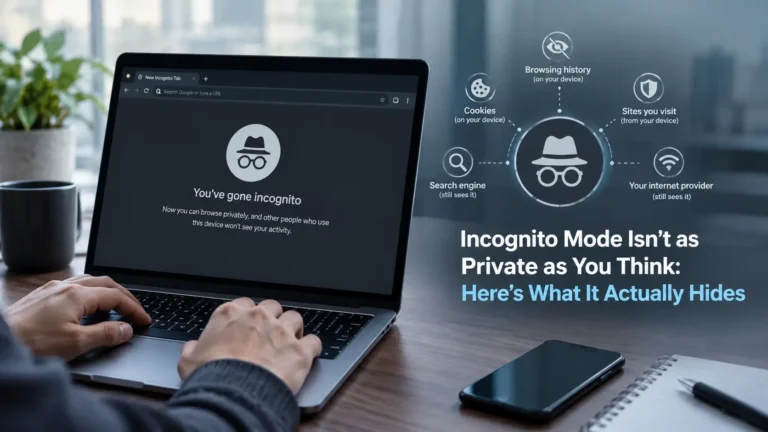
If you’ve ever opened an Incognito window thinking it makes you basically invisible online, you’re not alone, but that’s not quite how it works. Incognito mode does help with privacy, just not in the way most people assume. So let’s break down exactly what it hides, what it doesn’t, and what you can do if you actually want your browsing data gone for good.
What Does Incognito Mode Hide?
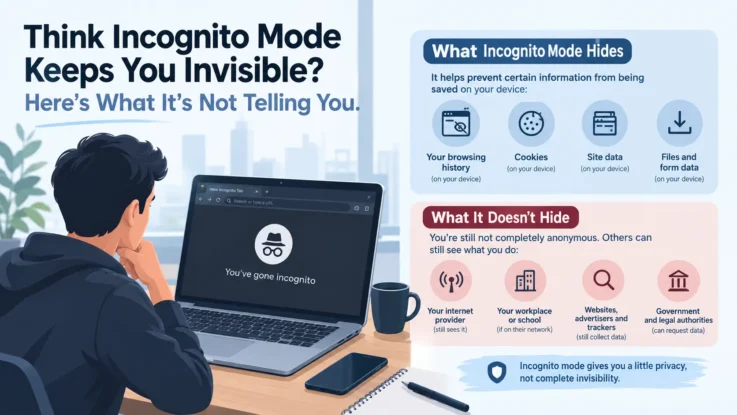
When you open an Incognito window, your browser essentially starts a fresh, temporary session that’s completely separate from your regular profile. Any websites you visit during that session won’t show up in your normal browsing history later.
Cookies and site data created while you’re browsing also get wiped the moment you close the window. The same goes for form entries, search history, and saved login details; none of that sticks around once you’re done.
That said, there’s a small catch worth knowing. All of this data only actually gets deleted once you close every single Incognito tab you have open, not just the one you were using.
What Doesn’t Incognito Mode Hide?
Here’s where a lot of people get it wrong. Incognito mode doesn’t make you invisible to the websites you visit, your internet provider, your office or school network, or anyone keeping an eye on the network you’re connected to. Your IP address is still very much visible too.
On top of that, anything you download during an Incognito session stays saved on your device just like normal, and any bookmarks you create are saved permanently as well. So really, Incognito mode is more of a local privacy tool; it clears your history on your device, but it doesn’t do anything to protect you at the network level.
How to Clear Incognito Data Properly
If you actually want to wipe things clean after using Incognito mode, here’s what to do:
- Close every single Incognito window you have open
- Delete any files you downloaded during that session
- Head into your Bookmark Manager and remove anything saved while in Incognito mode
- Clear your browser’s cache along with your DNS records
- On Windows, you can flush your DNS by running
ipconfig /flushdnsin Command Prompt
When Is Incognito Mode Actually Useful?
Despite its limits, Incognito mode genuinely comes in handy for everyday local privacy. Think of checking your email on a shared computer, say at a library or internet cafe, searching for something without it saving to your history, or comparing prices while shopping online without ads following you around afterward.
Just remember, it won’t protect you from network-level tracking, your ISP keeping tabs, or more advanced forms of surveillance. For that, you’ll need a bit more than just a private tab.
How to Improve Your Online Privacy Beyond Incognito
If Incognito mode alone isn’t cutting it for your privacy needs, pairing it with a few other habits can make a real difference. A VPN is a solid place to start; it encrypts your connection and hides your actual IP address. It’s also worth turning off auto sign-in wherever possible, clearing your cookies regularly, and keeping an eye on how much data your browser is storing over time.
Used the right way, alongside a few of these extra steps, Incognito mode can genuinely boost your day-to-day digital privacy, even if it’s not a complete shield on its own.
And while you’re cleaning up your digital habits, it’s worth checking out a couple of other common tech myths too. Ever wondered if Airplane Mode actually charges your phone faster? Or dealing with annoying signal drops? Here are 5 easy fixes for low signal problems that work in 99% of cases.