


Internet connectivity has pretty much become a basic need at this point. Whether it is smartphones, laptops, desktops, smart TVs, or tablets, most of what we do now work, entertainment, online classes, banking, and staying in touch with people, runs through some kind of internet connection. And among all the ways to get online, Wi-Fi is still the go-to option for most homes and offices.
That said, there is one problem almost everyone runs into at some point: forgetting the Wi-Fi password. It usually shows up at the worst time, like when you are trying to connect a new device or share the password with a guest.
The good news is that if your Windows laptop or PC is already connected to that network, you do not need to panic. Windows keeps a record of saved Wi-Fi passwords, and you can pull it up in just a few steps.
Here is a simple walkthrough on how to check the password of a Wi-Fi network your Windows computer is already connected to.
Why Users Often Forget Wi-Fi Passwords
Most people set a strong password when they first set up their Wi-Fi, and after that, they rarely type it in again. Since devices reconnect automatically once saved, it is easy to forget the password entirely over time.
This usually becomes a problem when you are:
- Buying a new smartphone or laptop
- Resetting a device
- Sharing internet access with visitors
- Changing routers or internet settings
- Connecting smart home devices
Instead of resetting your router or calling up your internet provider, Windows users can pull the password straight from their computer, as long as the device is already connected to that network.
Step 1: Open Control Panel on Your Windows PC
First, you will need to open the Control Panel, where all the network settings live.
How to Open Control Panel
- Press the Windows key on your keyboard
- Type “Control Panel” into the search bar
- Click on the Control Panel option from the results
Once that window opens, you can get to the internet and network settings from there.
Step 2: Go to Network and Internet Settings
From inside the Control Panel, head over to the network settings section.
Follow These Steps
- Click on “Network and Internet”
- Then select “Network and Sharing Center”
- Click on “View Network Status and Tasks”
This will show you all the active internet connections currently running on your system.
Step 3: Select the Connected Wi-Fi Network
Once the Network and Sharing Center is open, you should see the name of the Wi-Fi network your computer is currently connected to.
What to Do Next
- Find the connected Wi-Fi name
- Click directly on it
This will bring up a new Wi-Fi Status window with details about the connection.
Step 4: Open Wireless Properties
Inside that Wi-Fi Status window, you will find a few options related to the connection.
Steps to Continue
- Click on the “Wireless Properties” button
- A new settings window will open
This is where the saved wireless network configuration lives.
Step 5: Open the Security Tab
Now you need to get to the part where the actual password is stored.
Follow These Instructions
- Click on the “Security” tab
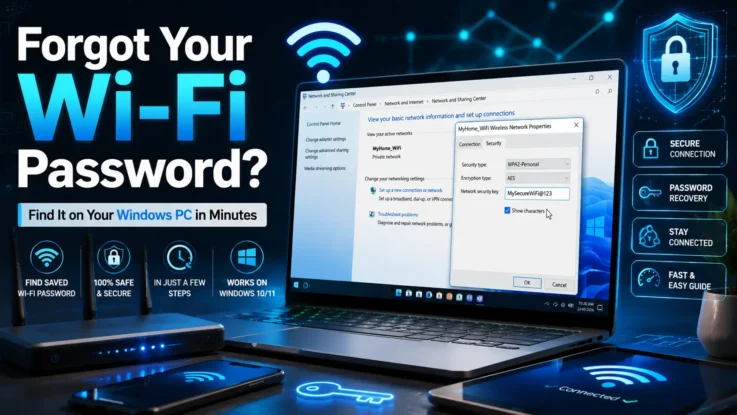
- Look for the field labeled “Network Security Key”
At this point, the password will still be hidden behind dots or asterisks, since it is masked by default for security.
Step 6: Reveal the Saved Wi-Fi Password
Last step, actually revealing it.
How to View the Password
- Tick the checkbox labeled “Show Characters”
The moment you do this, the saved Wi-Fi password shows up right there on screen. From here, you can copy it, jot it down, or share it with whoever needs it.
Important Things Users Should Know
This trick is genuinely useful, but it does come with a few conditions.
Key Points to Remember
- The Wi-Fi network needs to already be saved on the computer
- Your PC or laptop should currently be connected to that network
- Some systems may ask for administrative access
- This method works on most modern versions of Windows
If the network was removed or forgotten from the system at some point, the saved password will not be available anymore.
Why Strong Wi-Fi Passwords Are Important
Cybersecurity experts consistently recommend strong, unique Wi-Fi passwords to keep unauthorized users out and protect personal data. A weak password can leave you open to hacking attempts, slower internet speeds, and privacy issues down the line.
Tips for Better Wi-Fi Security
- Use a mix of letters, numbers, and symbols
- Avoid simple passwords like “12345678”
- Change your Wi-Fi password every so often
- Stick to WPA2 or WPA3 encryption
- Avoid sharing your password publicly
As more smart devices connect to home networks, keeping that Wi-Fi secure matters more than ever.
Windows Makes Password Recovery Easy for Users
A lot of people assume a forgotten Wi-Fi password means resetting the router or calling tech support, but Windows actually has a simple built-in way to recover it within minutes.
Whether you need to connect a new device, share your internet, or just remember your own network password, these steps get the job done without any extra software or technical know-how.
As internet use keeps growing across homes and workplaces, knowing small tricks like this one can save you a good bit of time and frustration.